
Post to Social Media from Claude Code
Add LotsSocial to Claude Code with one command and sign in once. Then draft, schedule and check your posts from the same terminal session where you ship.
Eligible new users get free credits, valid for 90 days. No card required.
Quickstart
1.Add the server
claude mcp add --transport http lotssocial https://api.lots.social/mcp2.Sign in from Claude Code
/mcp3.Ask for your accounts
List my connected social accounts on LotsSocial
Release notes to launch posts, from your terminal
01
Start with the actual diff
Ask Claude Code to identify user-visible changes. Keep implementation details out of the announcement unless they matter to your audience.
02
Use the remote publishing tools
Add the LotsSocial MCP server using Claude Code’s MCP command. No LotsSocial CLI needs to be installed.
03
Pick the release time
Review the text, then give Claude Code your accounts and publication time. LotsSocial manages the scheduled delivery.
What can Claude Code do with LotsSocial?
With a compatible connection, your agent can save drafts, schedule posts with images or video, manage connected accounts and retrieve available analytics. LotsSocial handles the publishing schedule; your agent supplies the content and instructions.
Supported networks: LinkedIn, Instagram, X, Google Business, Facebook, YouTube, Reddit, Threads, TikTok, Pinterest, Bluesky, Mastodon. Platform-specific formats and media requirements still apply.
You need
- Claude Code with a Claude plan
- A LotsSocial account, which is created when you first sign in. No card required.
Connect Claude Code to LotsSocial
- 1
Add the server
Run this in your terminal. It adds LotsSocial to the current project; nothing else to install.
claude mcp add --transport http lotssocial https://api.lots.social/mcpEvery projectclaude mcp add --transport http --scope user lotssocial https://api.lots.social/mcp - 2
Sign in from Claude Code
Start Claude Code and run /mcp. Select lotssocial, choose Authenticate, then choose Allow on the LotsSocial page that opens in your browser.
/mcp - 3
Ask for your accounts
Back in Claude Code, ask for your connected accounts. If one is missing, Claude Code gives you a link to connect it.
List my connected social accounts on LotsSocial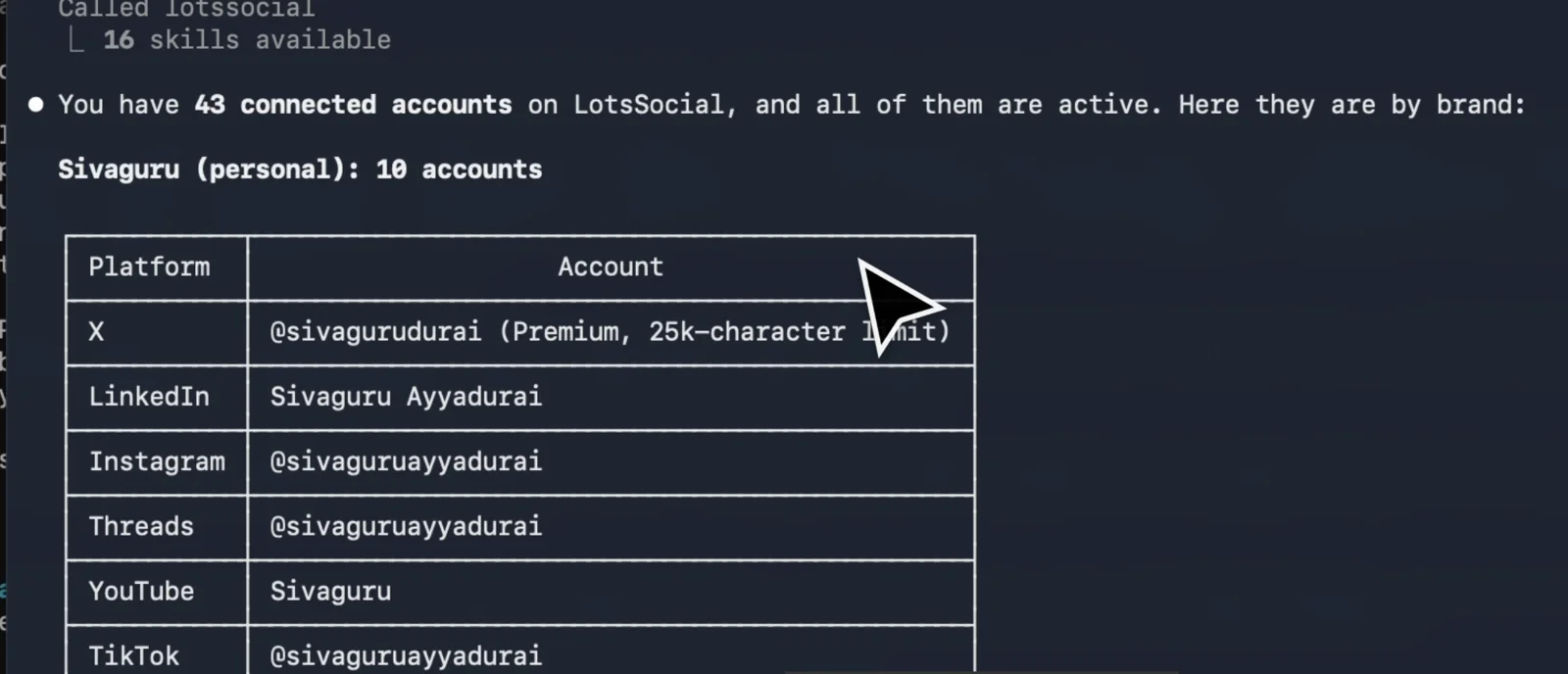

What to ask next
- “Write a launch post for the changes in this release and save it as a draft for X and LinkedIn”
- “Schedule the LinkedIn draft for Tuesday at 9am London time”
- “Connect my LinkedIn and Instagram”
Once connected, when you ask to connect an account, your agent gives you a link to open in your browser. Approve access on the network’s own page; the link works for an hour.
If something goes wrong
- lotssocial shows as needing authentication
- Run /mcp, select lotssocial and choose Authenticate, or run claude mcp login lotssocial in your terminal.
- The browser says Claude Code registered itself and is not verified
- That is normal for Claude Code: it registers with each MCP server and receives the sign-in on your own computer. Allow it when the return address is localhost.
Official setup documentation: Claude Code: MCP.
MCP or REST API: use the connection your agent supports.
The remote MCP endpoint is shared. For scripts or an agent with HTTP tools, use the REST API and an API key.
https://api.lots.social/mcp


